
Step 1
Create a profile
Start by selecting or creating a profile to save your automation setup.
AutoKey Premium is a free Windows automation tool that presses one or multiple keys at custom or smart intervals. Create profiles, auto-start tasks and stop instantly with a hotkey.
Built for reliable key automation on Windows — fast to set up, easy to control.
Press one or multiple keys in sequence (comma separated) with consistent behavior.
Use fixed, random or smart intervals with jitter to look more natural.
Save, load and manage your automation setups in seconds.
Start automation automatically on launch for selected profiles.
Stop immediately with your chosen stop key — stay in full control.
Modern interface with real-time logs, status and clear statistics.
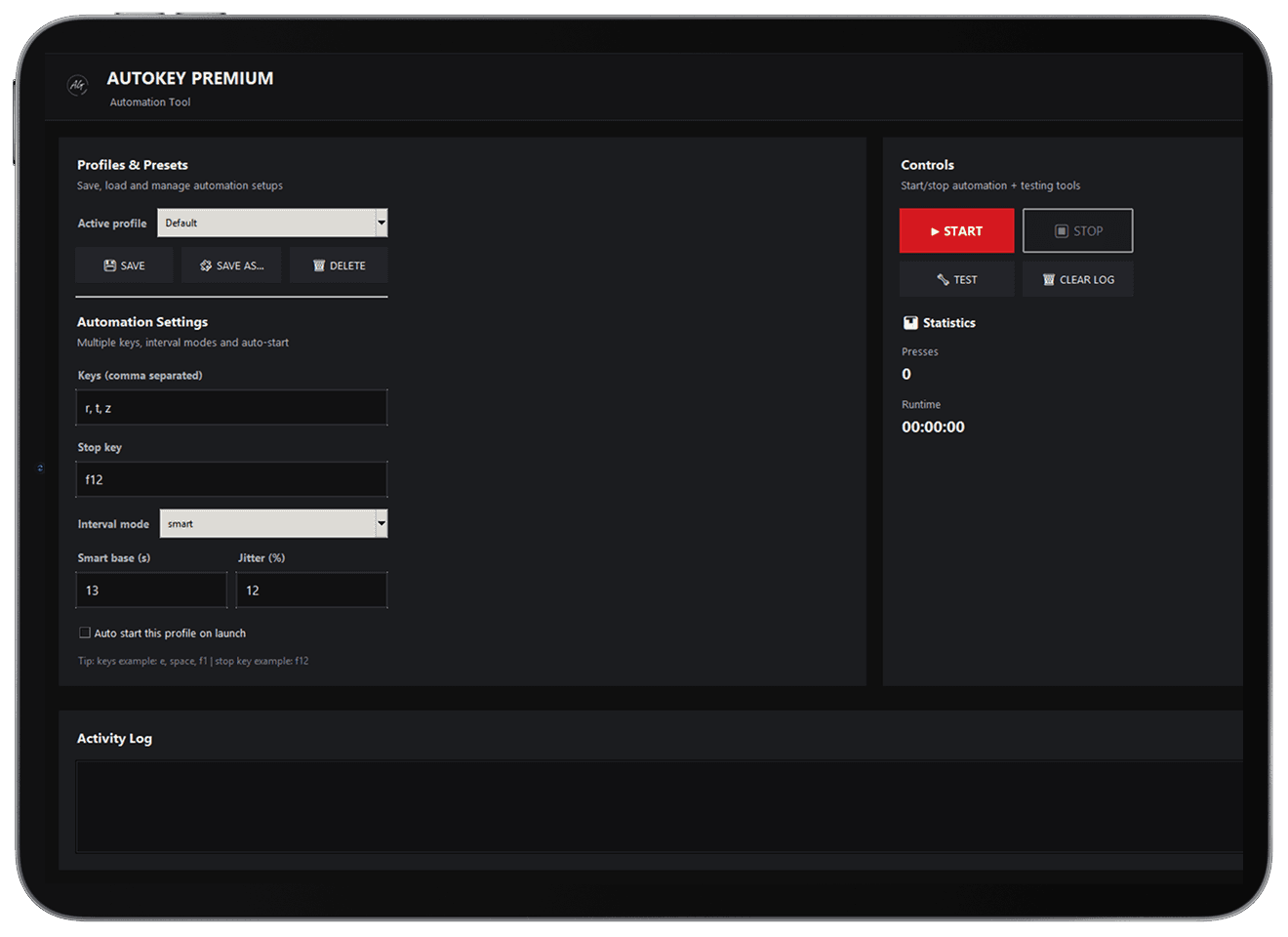
PREMIUM UI PREVIEW
Keep everything visible — keys, timing mode and status — with real-time logging and clear control.
Multiple keys
Press one or more keys in sequence using a simple comma-separated list.
Smart timing
Use fixed, random or smart intervals with jitter for natural behavior.
Profiles & auto-start
Save setups as profiles and optionally auto-start on launch.
Live status + logs
Clear running indicator, real-time log entries and basic statistics.
Simple setup. Flexible automation. Full control at all times.
Start by selecting or creating a profile to save your automation setup.
Enter one or multiple keys and choose a fixed, random or smart interval mode.
Assign a stop key and optionally enable auto-start for this profile.
Press start and let AutoKey handle the rest — stop instantly anytime.
Quick answers about profiles, smart timing and key automation on Windows.
It automates key presses on Windows. You can press one or multiple keys repeatedly using fixed, random or smart timing.
Yes. Enter multiple keys and AutoKey will press them in sequence (based on your configured setup).
Fixed uses the exact seconds you set. Random and Smart add variation (jitter) so timing can feel more natural.
Profiles let you save your setup (keys, timing mode, stop key). You can quickly load presets without reconfiguring everything.
Yes. Set a stop hotkey (for example F12) to stop immediately at any time.
Some applications block simulated input or require focus. Try running AutoKey as Administrator and keep the target window active.
It works best when the target app stays focused. Start AutoKey, then switch to the target window and keep it active while running.
AutoKey is designed to be simple and transparent. You can always stop instantly with your hotkey, and your settings stay on your device.